
Windows' default file copy is embarrassingly slow compared to this free open-source alternative
MakeUseOf· 949 words · 5 min read
More images
You might also stumble upon his short how-to video explainers, simplifying complex topics. Beyond writing, Tashreef enjoys creating short explainer videos, gaming, and exploring animated shows.
Windows Explorer does basic file operations just fine. Drag and drop a few files, and they move in an instant. However, if you are moving a large folder with mixed file types, it chokes and slows to a crawl. This comes from a design choice in how Windows stages file operations.
While you can use a third-party app like FastCopy to move large files faster, Windows has always had RoboCopy, a built-in command-line utility that handles large transfers significantly better. But it's less popular due to its command-line interface. ChoEazyCopy wraps RoboCopy in a proper GUI, making it accessible without you needing to memorize a single command.
What's RoboCopy, and why is it faster than File Explorer? A powerful built-in copy tool hidden behind the command line
There's a simple reason why File Explorer takes forever to start copying files. It stages every operation before transferring, processing files one at a time. This approach works for a handful of files, but with thousands of small files or deeply nested folders, the progress bar slows to a crawl. File Explorer also stalls when it hits permission errors or locked files, sometimes freezing the entire transfer until you click through the dialog.
RoboCopy is a command-line utility that has been part of Windows for years. It was originally built for system administrators who needed to move large datasets and sync servers. Unlike File Explorer, RoboCopy scans and queues operations more efficiently, handles nested folder structures better, and skips or retries problematic files instead of freezing. Its biggest advantage is multi-threaded copying through the /MT switch. This lets it copy multiple files in parallel, which means your SSD and network bandwidth are actually being used instead of sitting idle.
The catch is that RoboCopy lives entirely in the command line. You need to remember switches like /E, /MT:16, /R:1, and /W:1 to get the most out of it. For anyone who doesn't live in Windows Terminal, that's a dealbreaker.
ChoEazyCopy makes it easy to use RoboCopy A free GUI that turns command-line switches into checkboxes
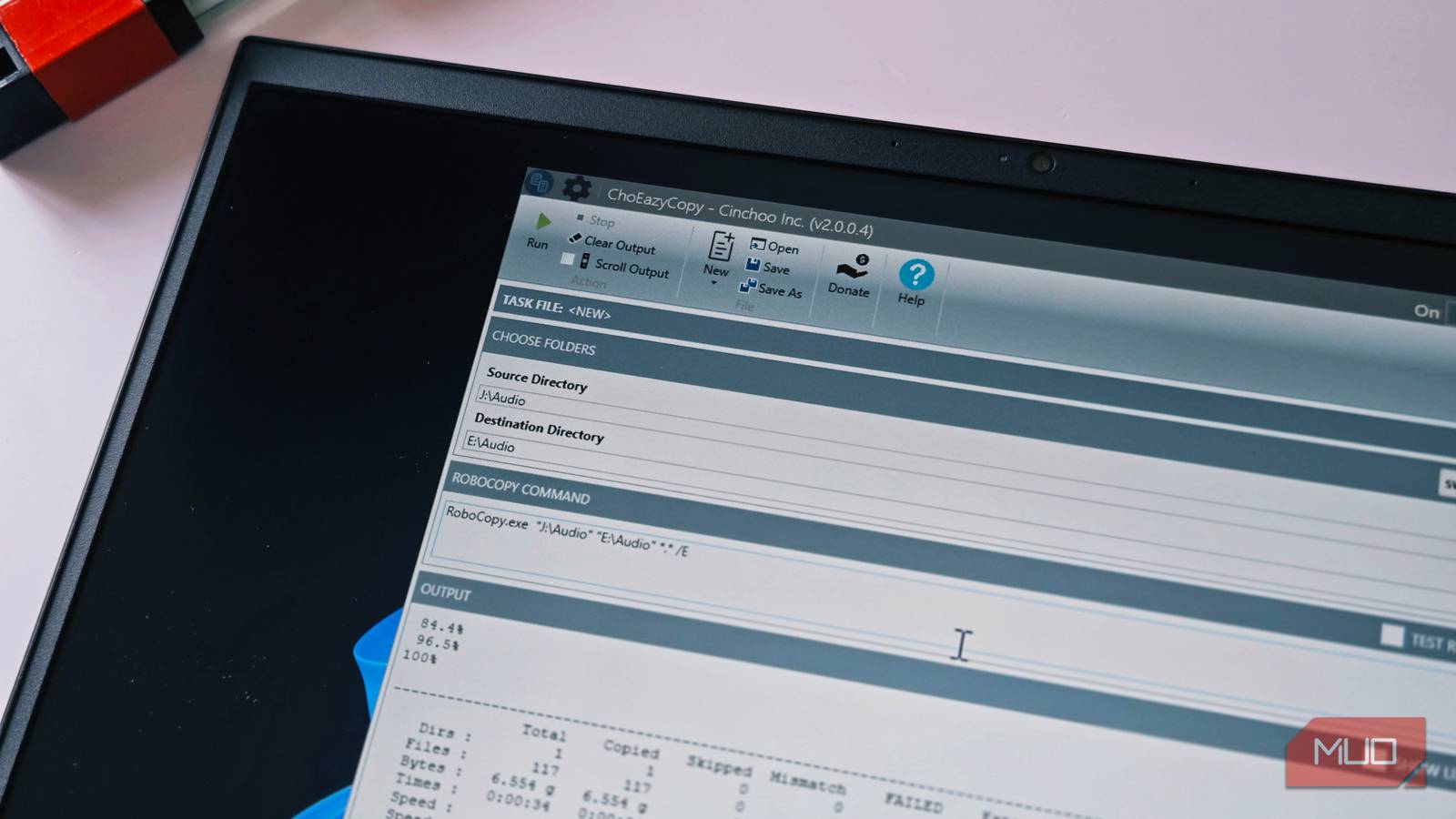
This is where ChoEazyCopy comes in. It's a free, open-source Windows app that acts as a front-end for RoboCopy. Instead of typing commands, you pick your source and destination folders, configure options through a visual interface, and hit Run. The app generates the correct RoboCopy command behind the scenes and executes it within the GUI itself.
The main window is straightforward. You get a Source Directory and Destination Directory field at the top, a Robocopy Command box that shows the exact command being used, and an Output section that displays the transfer progress in real time. There's also a Test Run checkbox that lets you preview what would happen without actually moving anything, which is useful when you're working with important files.
You'll also like the inline command view. As you change settings in the GUI, the command box updates to show the corresponding RoboCopy syntax. It works as both a learning tool and a verification step. You can see exactly what flags ChoEazyCopy is passing to RoboCopy, so you're never guessing what the app is doing with your files. You can also save your configurations as profiles, so recurring tasks like "copy photos to external drive" or "mirror documents to NAS" become one-click operations.
ChoEazyCopy has some advanced options RoboCopy options, backup tasks, and a task queue
Click the Control Panel tab on the right side of the window, and ChoEazyCopy reveals a full panel of RoboCopy options organized into categories. You get Common Options, Source Options, Destination Options, Copy Options, Monitoring Options, Scheduling Options, and Logging Options. These are the same switches you'd normally type in the command line, but presented as checkboxes, dropdowns, and input fields. For instance, you can enable multi-threaded copying, set retry counts, exclude files by size or age, and configure logging without touching a terminal.
The Backup Tasks tab works like a small task manager. Each saved task is a combination of source, destination, and your chosen profile. You can name them, organize them in a directory, and trigger them whenever you need. It turns RoboCopy from a one-off command into a catalog of named jobs that you can reuse.
Then there's the Task Queue. Instead of running one task at a time, you can line up multiple backup tasks and let ChoEazyCopy execute them in sequence. This is helpful when you want to back up several folders one after another without babysitting each transfer. You can also click New in the toolbar to create different job types like Empty Job, Synchronization Job, Copy Job, or Move Job, depending on what you need.
A GUI for a command-line tool sounds backwards, but it works
It might seem counterintuitive to build a graphical interface for a tool that was designed for the command line. But ChoEazyCopy isn't trying to replace RoboCopy for power users who are comfortable with Terminal. It's making the same functionality available to people who just want faster file transfers without learning command-line syntax. The profile system and task queue add genuine convenience that even raw RoboCopy commands don't offer out of the box.
That said, ChoEazyCopy's interface does look dated, and the sheer number of options in the Control Panel can be overwhelming if you're not familiar with what RoboCopy can do. For basic transfers, you won't need most of them. But if you regularly move large files or manage backups, having a visual way to access RoboCopy's full feature set is a practical upgrade over File Explorer's default copy behavior.